
How to View Color Critical Streams on Apple Platforms
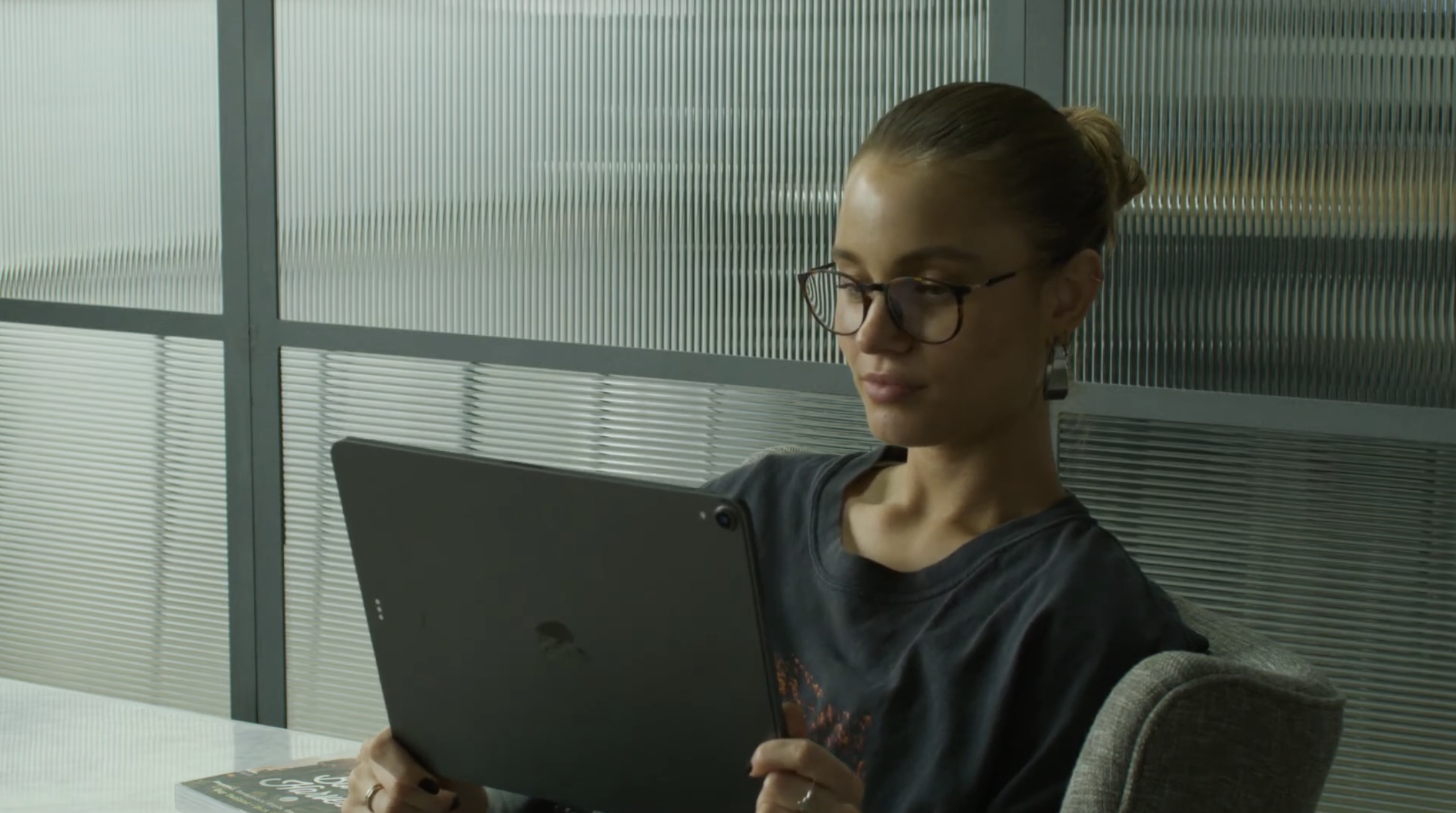
When reviewing color-critical streams, getting an accurate image depends not only on the source signal, but also on how each device handles color management, brightness, and HDR behavior. Apple platforms all treat video slightly differently, so a few system-level settings need to be configured to ensure Streaming Player displays the image as intended.
Below are best practices for macOS, iPadOS, tvOS, and iPhone when using Streaming Player.
macOS (Mac Studio, MacBook Pro, XDR Displays)
On macOS, Streaming Player communicates with Apple XDR displays and MacBook Pro panels using an HDR container. All streams SDR and HDR, are color-managed inside this container based on the stream’s color settings.
For Apple XDR displays, we recommend using the following display preset:
- HDR Video (P3-ST 2084)
This preset will lock brightness adjustment and respect any fine tune calibration. The “HDR Video (P3-ST 2084)” preset is our recommendation for both SDR and HDR workflows since color is managed by the colorfront engine. It will provide the most accurate color and luminance response when viewing streams in Streaming Player and ensures the image matches the source as closely as possible.
iPadOS (iPad Streaming Player)
On iPadOS, the most important setting is System Reference Mode. This must be enabled to avoid unintended brightness or tone mapping changes applied by the operating system.
To enable Reference Mode:
- Settings > Display & Brightness > Reference Mode
When Reference Mode is turned on, the iPad displays SDR and HDR streams accurately and consistently. This setting is required for proper evaluation of color, contrast, and brightness in Streaming Player.
tvOS (Apple TV)
On Apple TV, the video format settings play a critical role in how content lands on the connected display. Similar to the MacOS process, AppleTV Streaming Player leverages an HDR container for communicating with the TV. This requires the Format be configured to HDR in the AppleTV Settings > Video and Audio > Format. For the best experience 4K Dolby Vision is the preferred configuration, if that is not available 4K HDR is the next best.
Go to:
Settings > Video and Audio > Format
For the best review experience, select a 4K video format. Supported options include 4K HDR or 4K Dolby Vision at 50 or 60 Hz.
If you are using a Dolby Vision–capable television, such as LG or Sony displays, we strongly recommend setting the Apple TV to:
- 4K Dolby Vision
This provides the most accurate and consistent output for HDR content. Even when reviewing SDR material, we encourage using Dolby Vision mode, as it maintains a stable and predictable display pipeline.
iPhone
Unlike iPad, iPhone does not offer a System Reference Mode. Because of this, manual adjustments are required to reduce automatic image processing.
For best results on iPhone:
- Set brightness to 50 percent
- Turn off True Tone
- Turn off Night Shift
These settings help minimize dynamic changes in brightness and color temperature, allowing Streaming Player to display a more accurate representation of the stream.
Each Apple platform applies its own color management and display behavior, so configuring the correct system settings is essential for reliable review. Following these recommendations ensures that Streaming Player presents the source image as accurately and consistently as possible across macOS, iPadOS, tvOS, and iPhone.
If you have questions about a specific workflow or device setup, the Colorfront team is always happy to help.