
Stream Manager Basics: Top FIVE Things You Need to Know for Your Workflow Ease
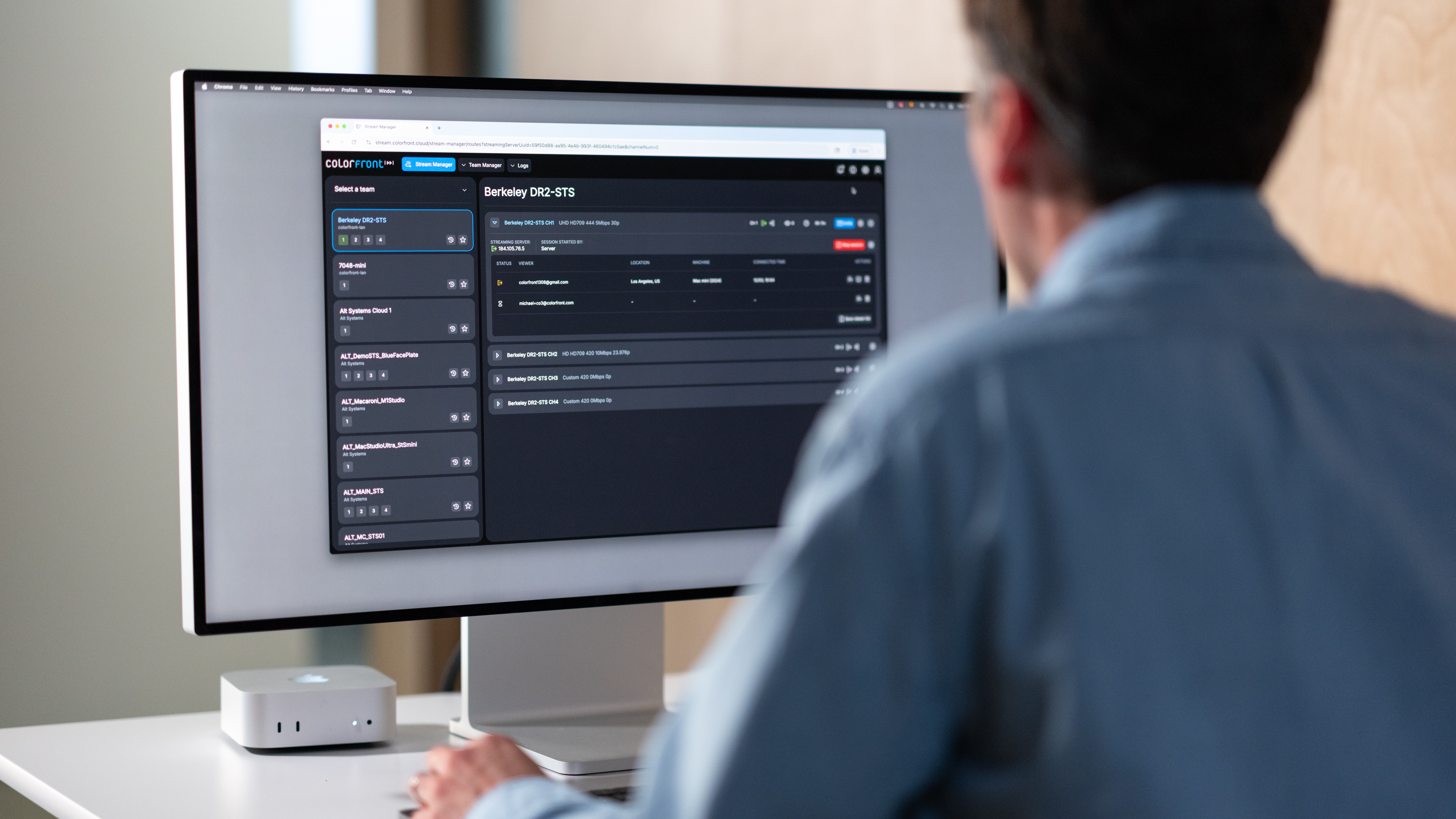
Our Colorfront Stream Manager makes it possible to securely monitor, review, and collaborate on high-quality video streams from anywhere in the world. Whether you're supporting on-set color, remote editorial, VFX reviews, or client sessions, Stream Manager centralizes the control you need to move quickly and confidently. Below are the top five essentials every user should understand to unlock a smoother, more efficient workflow.
1. The Variety of Ways to Send Invites for People to Connect to Streams
One of the biggest strengths of Colorfront Stream Manager is how flexible it is for bringing people into a session. You can invite viewers by email, let them join in a web browser, or have them watch on Apple TV, iPad, iPhone, Mac, or Windows. From Stream Manager you can generate one-time session links, remove viewers at any time, and upload a CSV to send many invites at once.
If a device doesn’t have email set up, the viewer can open Streaming Player, press Play, and a six-digit code will appear. Enter that code in Stream Manager using Add viewer with code. You can also send a direct Streaming Player URL—select Join session in Stream Manager and copy the Join with Streaming Player link for easy access.
2. Setting Up Web-Based Viewing
Web-based streaming is now the go-to for quick reviews, remote approvals, and large sessions. Stream Manager’s browser viewer removes software installs while maintaining excellent image fidelity and strong security.
Setup is simple: before starting a stream, open Stream Manager > Settings, scroll to the bottom, and toggle Secondary Stream. You can enable this per channel. After you start the stream and send an invite, the email will include a Join with web browser button, making it easy for remote creatives to jump in quickly without sacrificing reliability or picture accuracy.
3. Choosing Sources via Stream Manager
Stream Manager gives you centralized command over your video sources, making it easy to switch between feeds during a session. Whether your source is SDI, NDI, or a custom Logo, sources are presented in an organized list that you can change on the fly as you stream. Selecting or switching sources is instant, so you can move seamlessly between cameras, cuts, grades, or reference materials - especially useful in live reviews when you need quick comparisons.
You can also adjust Input Setup directly in Stream Manager (Channel > Input). Available modes include Quad-link SDI Input, Dual-Input SDI, Stereo SDI Inputs, and Four SDI Inputs. This lets you reconfigure the ingest path remotely without leaving the session; the choice is saved per channel.
4. Adjusting Stream Settings on the Stream Manager
Every streaming session has unique requirements, some need full-res reference quality, others need bandwidth-optimized previews and Stream Manager gives you the controls to match.
From the dashboard you can adjust resolution, bitrate, audio configuration, latency, both input and output colorspaces and more. This flexibility lets you tailor performance to the viewer’s connection, the creative intent of the review, and the technical demands of your workflow. You can also make many of these adjustments mid-session without stopping the stream.
5. Utilizing the Logo in Your Stream Workflow
A particularly helpful feature of Custom Logo is using it as a waiting room. You can start a session early, send invites an hour ahead, and let viewers join, install Streaming Player, and confirm their setup, while you’re not yet sharing live video. When you’re ready, just switch the input from Logo to SDI or NDI to begin.
To enable it, place a 1920×1080 PNG in:
Windows: C:\Program Files\ColorfrontPlatform\Logo\ (the Logo folder under ColorfrontPlatform), then choose Logo as the source in Stream Manager.
Branding is a nice bonus, using your production or client logo adds a professional look and a clear “stand by” visual. But the real value is the smooth, low-stress ramp into the session.